
Every year, for teacher appreciation week, I like to send out a Google Form to our entire community and ask everyone to share some gratitude for our amazing staff. The form goes out in the weekly blogpost, I mention it in the all call, we may even slip it into a Facebook post or two. Every time we do this, we get roughly 1000 responses. Then we use some Google magic to mail merge the responses so that each staff member receives a single email with all the comments shared by our community.
Imagine recieving an email with crowd sourced comments from current and former families, all thanking you for what you have done in support of thier students! #Grattitude
If you'd like some step by step directions on how this is done, well, just keep on reading!
Sincerely,
John Eick

The Steps below will demonstrate how to collect 1000's of comments from the community and merge them automatically into emails that look like the one to the left.
Step 1: Build a Form with the names of all the people you would like to see celebrated.
Step 2: Launch the form into a community.
Step 3: Use some simple formulas to merge all the appreciation into one place.
Step 4: Mail merge the celebrations to email so that each person gets one email containing all the celebrations that were submitted on their behalf!
Click Here for a Sample Form
Click Here for a Sample Spreadsheet
Step 1: Build a Form with the names of all the people you would like to see celebrated.
The key to step one is to use either a Multiple Choice, or a Select from a List, and include all the staff members you want to celebrate. If you allow families to type in the name of the teacher, it will be hard to sort the data later on.

The rest of the form is simple, ask them for their name or family name, this way you can later merge their comment with who it is from. Next ask them to enter some appreciation into a paragraph box.
Step 2: Launch the form into a community.
Step two is the most fun part! Take the link for the Google Form and send it out to the community in every channel you have access to. I even like to send the link out to staff, so they can celebrate one another! Note: let people know when the form will close, and remind them to use the form as many times as possible. Once you are ready, shut the form off and begin steps 3 and 4.Step 3: Use some simple formulas to merge all the appreciation into one place.
1. Merge comments and Signatures:
Since one column has the name of the family, and another column has the comment, it is fun to merge them together. This will give your email merge a very consistent look. Every comment will have a signature line.In this example, column C has the family name and column D has the comments. So, we are going to merge them together in column E.
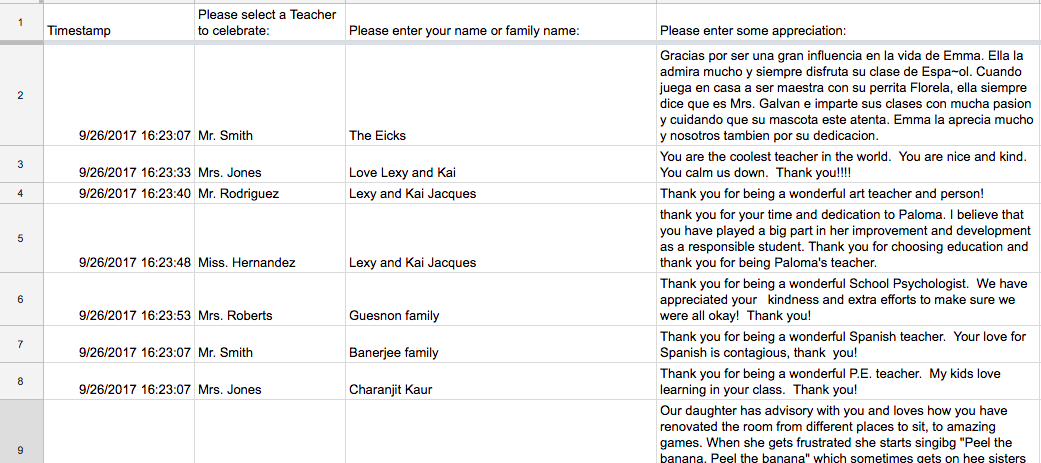
First we will label column E with a header, let's call it: Merging Signitures.
Then, in the first row in column E, we will use the following formula:
=D2&CHAR(10)&"- "&C2&CHAR(10)
Now if you are new to formulas, let me explain. In the first row, below the heading, in column E, we just wrote a formula that tells the sheet what to paste here.
- = sign tells the cell that we are starting a formula.
- D2 just tells the cell to paste whatever is in D2 into this cell. Well for us, D2 is the comment from the family.
- & tells the formula that we have another command coming, so it reads, paste the comment here AND ...
- Char(10) is the command to hit return. So it is going to Paste the comment, the hit return so that when we paste the signature it falls below the comment.
- & tells the formula that something is coming after we hit return.
- "- " says print whatever is in these quotes. Therefore, I am asking for a hyphen. So, we have our comment AND a carriage return AND a hyphen.
- C2 is the name of the cell with the signature, so, we have a comment AND a carraige return AND a Hyphen AND a signature.

Once you have the formula built, just drag the corner of the blue box down, and the formula will auto populate for all rows!


2. Prepare a Mail Merge Sheet:
In this step, you will leave the Response Sheet and start a new sheet where you will merge all the information before sending it out via email.First, open a new tab on your spread sheet.
Next, Paste all the names of your teachers in Column A.
- You now have a sheet with all your names in Column A and nothing else on the sheet. Each staff member should only be named here once, just like on the form.
Next, since we will be emailing to each staff member, place each staff member's email address in column B.

Final Step: The Big Merge
Now that you have the names and email addresses all in place, we will merge all comments to column C. The formula looks intense, but it is really useable, here we go:Place the following formula in column C:
=join(CHAR(10), QUERY('Form Responses 1'!A:E, "select E where B contains'"&A3&"'", 0))

- =join tells the cell that we are going to Join multiple things
- (CHAR(10),means we are entering a carriage return. This will put a space between each entry. The comma says that another command is coming.
- QUERY('Form Responses 1'!A:E, Tells the cell that we are running a query, or we are looking for something on the sheet named'Form Responses 1', in Columns A through E. So far we have said we are going to Join a space with something that we are looking for in Columns A-E on the response sheet.
- "select E where B contains'"&A3&"'", This is where the magic happens, this describes the Query: paste here the contents of Column E (this is our merged signature column), only when you see the teachers name in Column B that matches the teachers name here in Cell A2.
- ,0 tells this cell if you don't find a match for the name in A2, just do nothing.
Once you run this formula, it will Join a carriage return or a space, with each comment associated with the teacher name in A2.
Next, just grab that magic blue box again in the bottom left corner of the cell, and drag it down so that it pastes the formula on every row where you have a teacher name.

Step 4: Mail merge the celebrations to email so that each person gets one email containing all the celebrations that were submitted on their behalf!
To mail merge from this spreadsheet to email is simple. Just go to the top of the sheet, in the dropdown menu, select AddOns, then click Get Add Ons.
Search for the add on, Yet Another Mail Merge.
Follow the prompts to add this Add On.
Next, click on the Add Ons drop down at the top of the sheet again, and select Yet Another Mail Merge from the list. Once you launch this Add On, you will be prompted, step by step to create the merge.
Video Support
Below is a video that might help if you get stuck on any of the steps above. Please feel free to use comments or reach out to me directly at johndavideick@gmail.com if you have any questions!
